
Building a dark/light theme toggle in Astro
CSS custom properties, localStorage persistence, and no flash of wrong theme
- Published
- 14 April 2026
- Read time
- 6 min read
Was this useful?
A dark/light toggle is one of those features that sounds trivial and isn’t. Get it wrong and you ship the flash of wrong theme: the page loads light, then flickers dark if that was the user’s stored preference. Or you ship a toggle that forgets its state on every page load.
This blog’s implementation avoids all of those. There’s also a third option that
most implementations skip: a “System” mode that tracks the OS preference in
real time, without touching localStorage.
The colour system
All colours are defined as CSS custom properties on :root and overridden under
[data-theme='dark']. There’s no separate dark-mode stylesheet, no class-swapping
on individual elements. Just two variable sets, one attribute:
:root { --color-pink: #e8006a; --color-ink: #0f0f0f; --color-paper: #ffffff; --color-muted: #6b6b6b; --color-surface: #ffffff; --color-border: rgba(0, 0, 0, 0.1);}
[data-theme='dark'] { --color-ink: #f0f0f0; --color-paper: #111111; --color-muted: #999999; --color-surface: #1c1c1c; --color-border: rgba(255, 255, 255, 0.1);}Switching between themes is a single setAttribute call on document.documentElement.
Every element on the page that uses a custom property updates instantly.
The pink accent (--color-pink) doesn’t change between themes: it’s a
fixed identity colour, not a semantic one.
The toggle component
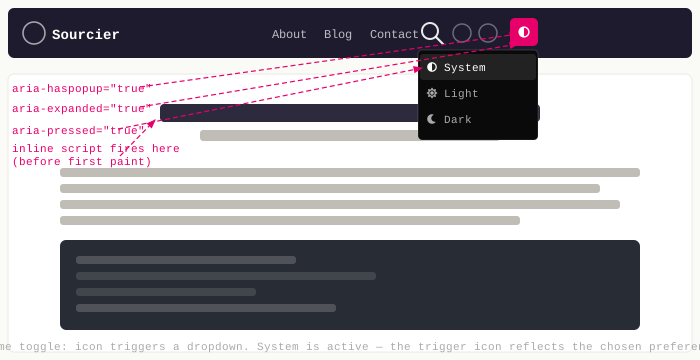
The toggle lives in the navbar’s social icon group inside a dedicated ThemeToggle.astro
component. It’s a single icon button that opens a small dropdown menu with System,
Light, and Dark options:
<div class="theme-toggle"> <button class="theme-toggle__trigger social-icon" aria-label="Theme preference" aria-expanded="false" aria-haspopup="true" > <span class="theme-toggle__trigger-icon theme-toggle__trigger-icon--system"> <!-- half-stroke circle icon --> </span> <span class="theme-toggle__trigger-icon theme-toggle__trigger-icon--light"> <!-- sun icon --> </span> <span class="theme-toggle__trigger-icon theme-toggle__trigger-icon--dark"> <!-- moon icon --> </span> </button>
<div class="theme-toggle__dropdown" role="menu" aria-label="Theme preference" hidden> <button class="theme-toggle__option" data-theme-select="system" role="menuitem" aria-pressed="true"> <!-- half-stroke circle --> System </button> <button class="theme-toggle__option" data-theme-select="light" role="menuitem" aria-pressed="false"> <!-- sun --> Light </button> <button class="theme-toggle__option" data-theme-select="dark" role="menuitem" aria-pressed="false"> <!-- moon --> Dark </button> </div></div>The trigger carries aria-haspopup="true" and aria-expanded (toggled by the
script). The dropdown starts hidden; the script removes that attribute to reveal it.
Three icon spans live inside the trigger. Only one is visible at a time. CSS targets
data-theme-current on the wrapper div (set by the script) to show the right icon:
.theme-toggle__trigger-icon { display: none; }
.theme-toggle[data-theme-current="system"] .theme-toggle__trigger-icon--system,.theme-toggle[data-theme-current="light"] .theme-toggle__trigger-icon--light,.theme-toggle[data-theme-current="dark"] .theme-toggle__trigger-icon--dark { display: flex;}This makes the trigger reflect the user’s chosen preference, not the resolved OS theme. If someone selects System and their OS is dark, the trigger shows the half-stroke circle, not the moon.
The script
The toggle script handles two concerns: dropdown open/close state, and theme
selection. Both live inside the <script> block in ThemeToggle.astro. Astro
bundles component scripts automatically:
const wrapper = document.querySelector<HTMLElement>(".theme-toggle")!;const trigger = wrapper.querySelector<HTMLButtonElement>(".theme-toggle__trigger")!;const dropdown = wrapper.querySelector<HTMLElement>(".theme-toggle__dropdown")!;const options = wrapper.querySelectorAll<HTMLButtonElement>("[data-theme-select]");const html = document.documentElement;
function setTheme(mode: string) { wrapper.dataset.themeCurrent = mode; options.forEach((btn) => btn.setAttribute("aria-pressed", btn.dataset.themeSelect === mode ? "true" : "false"), ); if (mode === "system") { localStorage.removeItem("theme"); html.setAttribute( "data-theme", window.matchMedia("(prefers-color-scheme: dark)").matches ? "dark" : "light", ); } else { localStorage.setItem("theme", mode); html.setAttribute("data-theme", mode); }}
function openMenu() { dropdown.removeAttribute("hidden"); trigger.setAttribute("aria-expanded", "true");}
function closeMenu() { dropdown.setAttribute("hidden", ""); trigger.setAttribute("aria-expanded", "false");}
trigger.addEventListener("click", () => { if (dropdown.hasAttribute("hidden")) openMenu(); else closeMenu();});
document.addEventListener("click", (e) => { if (!wrapper.contains(e.target as Node)) closeMenu();});
document.addEventListener("keydown", (e) => { if (e.key === "Escape") closeMenu();});
options.forEach((btn) => btn.addEventListener("click", () => { setTheme(btn.dataset.themeSelect!); closeMenu(); }),);
const stored = localStorage.getItem("theme");setTheme(stored === "dark" || stored === "light" ? stored : "system");
window.matchMedia("(prefers-color-scheme: dark)").addEventListener("change", (e) => { if (!localStorage.getItem("theme")) { html.setAttribute("data-theme", e.matches ? "dark" : "light"); }});A few things worth noting:
setThemeis the single source of truth: it updatesdata-theme-currenton the wrapper (for trigger icon visibility),aria-pressedon each option, andlocalStorageanddata-themeon<html>.openMenu/closeMenukeep thehiddenattribute andaria-expandedin sync. Using the HTMLhiddenattribute (rather than a CSS class) means the closed state works even before styles load.- Clicking outside the wrapper or pressing Escape closes the menu, the standard dropdown behaviour users expect.
- System mode removes the
localStoragekey rather than storing"system". Only"dark"or"light"are ever written. - The
matchMediachange listener fires when the OS theme switches while the page is open. It only acts when no explicit preference is stored, i.e. when the user is in System mode.
Preventing the flash of wrong theme
If you read localStorage in a script that loads after the page renders, you’ll
see the default theme briefly before the script applies the stored preference. The
fix is to run the theme-reading code synchronously in <head>, before the body
is parsed. In BaseLayout.astro:
<html lang="en" data-theme="light"> <head> <!-- ... meta, links ... --> <script is:inline> const stored = localStorage.getItem("theme"); if (stored === "dark") { document.documentElement.setAttribute("data-theme", "dark"); } else if (stored === "light") { document.documentElement.setAttribute("data-theme", "light"); } else if (window.matchMedia("(prefers-color-scheme: dark)").matches) { document.documentElement.setAttribute("data-theme", "dark"); } </script>The priority order is:
- Stored explicit preference (
"dark"or"light") - OS
prefers-color-scheme: dark - Fallback: the
data-theme="light"already on the<html>tag
The is:inline directive tells Astro not to bundle or defer this script: it
stays as a literal inline <script> tag and runs immediately, before the browser
paints anything.
Expressive Code alignment
Expressive Code (the syntax highlighting library) needs to know to follow the
data-theme attribute rather than the OS prefers-color-scheme media query.
Without this, code blocks would follow the system preference even when the user
has picked an explicit theme. They’d be out of sync:
expressiveCode({ useDarkModeMediaQuery: false, themeCssSelector: (theme) => theme.type === "dark" ? '[data-theme="dark"]' : ':root:not([data-theme="dark"])',})useDarkModeMediaQuery: false disables the default @media (prefers-color-scheme)
approach. themeCssSelector maps each Expressive Code theme variant to a CSS
selector that matches the data-theme attribute instead.
Working on something similar?
Need help raising the bar?
I help teams improve engineering practice through hands-on delivery, pragmatic reviews, and mentoring. If you want a second pair of eyes or practical support, let's talk.
- Engineering practice review
- Hands-on delivery
- Team mentoring
If this has been useful, you can back the writing with a one-off tip through a secure Stripe checkout.
Free · Practical · One email per post
Get practical engineering notes
One short email when a new article goes live. Useful if you are breaking into tech, growing as an engineer, or improving engineering practice on your team.
Comments
Loading comments…
Leave a comment