

Improving code blocks in Astro
Syntax highlighting, dual themes, line numbers, frames, and markers with Expressive Code
- Published
- 9 June 2026
- Read time
- 8 min read
Was this useful?
Astro ships with built-in syntax highlighting through Shiki, and for the most part it does the job. But out of the box you get highlighted code and not much else: no copy button, no language badge, no way to mark specific lines or highlight a changed word, no framing to distinguish a terminal command from a config file. For a blog that is primarily about code, those gaps show up constantly. I wanted blocks that added context at a glance without requiring custom CSS for every new feature.
Expressive Code is an Astro integration that replaces the default code fence renderer with polished, accessible components — syntax highlighting, dual themes, a copy button, language labels, editor and terminal frames, and line/text markers, all driven by code fence attributes. No custom CSS or JavaScript required.
The alternative is building it yourself: a custom rehype plugin to transform code nodes, hand-rolled CSS for every theme variant, client-side JavaScript for the copy button, and your own logic for diff markers and line highlighting. I looked at that route and decided the maintenance surface was not worth it. Expressive Code solves the whole problem in a single integration, the feature set is well ahead of anything I would build in a reasonable time, and the API maps cleanly to what you already write in a code fence.
Setup
Install the integration and the optional line numbers plugin:
pnpm add astro-expressive-code @expressive-code/plugin-line-numbersThis site uses a manual data-theme toggle rather than prefers-color-scheme, so
useDarkModeMediaQuery is disabled and themeCssSelector maps theme variants to
that attribute:
import { defineConfig } from 'astro/config';import expressiveCode from 'astro-expressive-code';import { pluginLineNumbers } from '@expressive-code/plugin-line-numbers';
export default defineConfig({ integrations: [ expressiveCode({ themes: ['one-light', 'one-dark-pro'], plugins: [pluginLineNumbers()], defaultProps: { showLineNumbers: true, wrap: true, overridesByLang: { 'bash,sh,zsh': { preserveIndent: false }, }, }, styleOverrides: { codePaddingInline: '1.5rem', }, useDarkModeMediaQuery: false, themeCssSelector: (theme) => theme.type === 'dark' ? '[data-theme="dark"]' : ':root:not([data-theme="dark"])', }), ], markdown: { syntaxHighlight: false, },});syntaxHighlight: false hands all code fence processing over to Expressive Code.
Themes
themes takes an array of Shiki theme names — first is the light variant, second is
dark. Expressive Code emits scoped CSS variables for both and activates each via the
selector returned by themeCssSelector. Any pair from
the Shiki catalogue works.
Frames
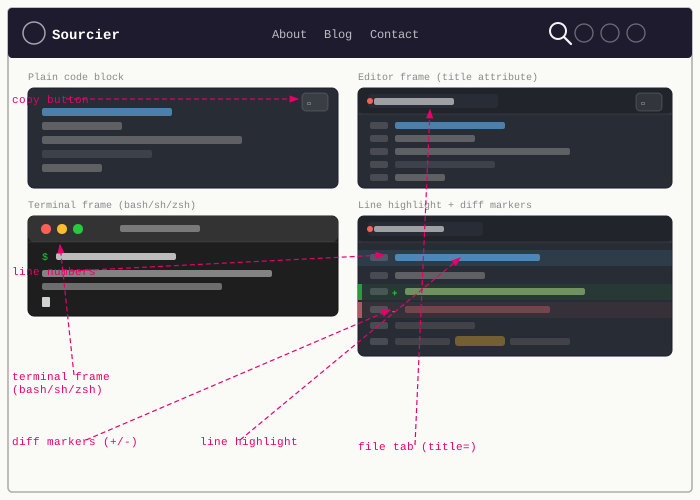
Every code block is wrapped in a frame. The frame type — editor or terminal — is detected automatically from the language identifier, but can be overridden.
Editor frames
There are two ways to set the tab title — a title attribute on the fence, or a
file name comment in the first four lines of the code:
```js title="src/utils/format.js"export function formatDate(date) { return new Intl.DateTimeFormat('en-GB').format(date);}```
```js// src/utils/format.jsexport function formatDate(date) { return new Intl.DateTimeFormat('en-GB').format(date);}```title attribute — the tab label is set directly:
export function formatDate(date) { return new Intl.DateTimeFormat('en-GB').format(date);}File name comment — extracted as the tab title and removed from the rendered output:
export function formatDate(date) { return new Intl.DateTimeFormat('en-GB').format(date);}Terminal frames
Shell languages (bash, sh, zsh, ps1, etc.) are automatically rendered as
terminal frames. A title is optional:
pnpm buildecho "No title — still a terminal frame"Overriding frame type
Force a specific type with the frame attribute. Useful when a shell script should
look like an editor tab, or when you want to strip all chrome from a block:
```ps frame="code" title="PowerShell Profile.ps1"function Watch-Tail { Get-Content -Tail 20 -Wait $args }New-Alias tail Watch-Tail```function Watch-Tail { Get-Content -Tail 20 -Wait $args }New-Alias tail Watch-Tail```sh frame="none"echo "No frame at all"```echo "No frame at all"Line numbers
Enabled globally via defaultProps: { showLineNumbers: true }. Both props can be
overridden per block — turn them off entirely, or start the counter at an arbitrary
number when showing a file excerpt:
```js showLineNumbers=falseexport function formatDate(date) { return new Intl.DateTimeFormat('en-GB').format(date);}```
```js startLineNumber=42export function formatDate(date) { return new Intl.DateTimeFormat('en-GB').format(date);}```showLineNumbers=false — line numbers hidden:
export function formatDate(date) { return new Intl.DateTimeFormat('en-GB').format(date);}startLineNumber=42 — counter starts at 42, useful for excerpts:
export function formatDate(date) { return new Intl.DateTimeFormat('en-GB').format(date);}Word wrap
wrap: true enables soft wrapping globally. Long lines fold visually to the next
line rather than causing a horizontal scrollbar. preserveIndent (default: true)
keeps wrapped lines aligned with their original indentation — useful for code.
Setting it to false makes wrapped lines start at column 1, which suits terminal
output, so the config uses overridesByLang to apply that for bash,sh,zsh.
Both can be overridden per block:
```js wrap=trueconst result = await fetch('https://api.example.com/v1/users?filter=active&sort=createdAt&order=desc&limit=100&page=2');```
```js wrap=falseconst result = await fetch('https://api.example.com/v1/users?filter=active&sort=createdAt&order=desc&limit=100&page=2');```wrap=true — long line folds to the next line:
const result = await fetch('https://api.example.com/v1/users?filter=active&sort=createdAt&order=desc&limit=100&page=2');wrap=false — long line causes a horizontal scrollbar:
const result = await fetch('https://api.example.com/v1/users?filter=active&sort=createdAt&order=desc&limit=100&page=2');Line markers
Draw attention to specific lines or ranges using mark, ins, and del:
mark={N}— neutral highlightins={N}— green “added” highlight with a+indicatordel={N}— red “removed” highlight with a-indicator
```js mark={1} ins={3-5} del={7}import { defineConfig } from 'astro/config';
import expressiveCode from 'astro-expressive-code';import { pluginLineNumbers } from '@expressive-code/plugin-line-numbers';import emoji from 'remark-emoji';
import { oldPlugin } from './old-plugin';```import { defineConfig } from 'astro/config';
import expressiveCode from 'astro-expressive-code';import { pluginLineNumbers } from '@expressive-code/plugin-line-numbers';import emoji from 'remark-emoji';
import { oldPlugin } from './old-plugin';Combine multiple ranges in one attribute: ins={1-2, 5, 8-10}.
Labels can be added to any marked range — wrap the value in {"label:": range}
and a coloured badge appears at the start of the highlighted block. The label
string must end with a colon:
```js ins={"1":3-5} del={"2":7}import { defineConfig } from 'astro/config';
import expressiveCode from 'astro-expressive-code';import { pluginLineNumbers } from '@expressive-code/plugin-line-numbers';import emoji from 'remark-emoji';
import { oldPlugin } from './old-plugin';```import { defineConfig } from 'astro/config';
import expressiveCode from 'astro-expressive-code';import { pluginLineNumbers } from '@expressive-code/plugin-line-numbers';import emoji from 'remark-emoji';
import { oldPlugin } from './old-plugin';Using diff syntax
Set the language to diff and prefix lines with + or -. Add lang="..." to
keep syntax highlighting for the actual language:
```diff lang="js" export default defineConfig({ integrations: [- shikiConfig({ themes: { light: 'one-light', dark: 'one-dark-pro' } }),+ expressiveCode({ themes: ['one-light', 'one-dark-pro'] }), ], });```export default defineConfig({ integrations: [ shikiConfig({ themes: { light: 'one-light', dark: 'one-dark-pro' } }), expressiveCode({ themes: ['one-light', 'one-dark-pro'] }), ],});Text markers
Mark arbitrary text within lines using the same mark, ins, or del attributes
with a quoted string value:
```js ins="expressiveCode" del="shikiConfig" mark="themes"import expressiveCode from 'astro-expressive-code';
export default defineConfig({ integrations: [expressiveCode({ themes: ['one-light', 'one-dark-pro'] })], markdown: { shikiConfig: { themes: { light: 'one-light' } } },});```import expressiveCode from 'astro-expressive-code';
export default defineConfig({ integrations: [expressiveCode({ themes: ['one-light', 'one-dark-pro'] })], markdown: { shikiConfig: { themes: { light: 'one-light' } } },});Use a /regex/ for pattern-based matching, or repeat the attribute for multiple
values: ins="foo" ins="bar". Capture groups narrow the match to a sub-expression:
/import (expressiveCode)/ marks only the identifier, not the whole import statement.
The full picture
With astro-expressive-code in place, a single config block handles syntax
highlighting, dual themes, line numbers, word wrap, copy buttons, and language labels.
Editor and terminal frames add context without extra markup. Line and text markers let
you direct the reader’s attention precisely — all driven by code fence attributes that
read naturally in the source.
If you are setting this up on your own Astro site, or have a different approach to code block styling, I’d like to hear about it. The rest of the series covers the table of contents, pagination, search, and more — sign up to the mailing. list below to get each post the morning it drops.
Working on something similar?
Need help raising the bar?
I help teams improve engineering practice through hands-on delivery, pragmatic reviews, and mentoring. If you want a second pair of eyes or practical support, let's talk.
- Engineering practice review
- Hands-on delivery
- Team mentoring
If this has been useful, you can back the writing with a one-off tip through a secure Stripe checkout.
Free · Practical · One email per post
Get practical engineering notes
One short email when a new article goes live. Useful if you are breaking into tech, growing as an engineer, or improving engineering practice on your team.
Comments
Loading comments…
Leave a comment