

Adding a mailing list to a static Astro blog with Resend
No third-party embed, no database — just a Netlify Function, the Resend Segments API, and a couple of components
- Published
- 21 May 2026
- Read time
- 11 min read
Was this useful?
Adding a mailing list to a static site is one of those features that looks like it needs a whole backend — a database of subscribers, a queue, an unsubscribe flow. In practice, if you’re already on Netlify and already using Resend for transactional email, you can bolt on a working subscription form in an afternoon.
Here’s exactly how I did it on this site.
What we’re building
A MailingListCTA Astro component that:
- Renders an email input and a subscribe button
- Submits via
fetchto a Netlify Function - Shows inline success or error feedback without a page reload
- Includes a honeypot field to block bot submissions
The Netlify Function:
- Validates the email server-side
- Silently discards bot submissions (honeypot check)
- Calls the Resend Segments API to add the contact
Setting up Resend Segments
Resend recently migrated from Audiences to Segments — Audiences still work but are deprecated and will be removed. The concept is the same: a named list of contacts you can send broadcasts to.
Create a segment in the Resend dashboard. Once created, copy the segment ID — you’ll need it as an environment variable.
The Netlify Function
Create netlify/functions/subscribe.ts. The function receives a POST with
{ email, website } in the body. The website field is the honeypot.
import type { HandlerEvent } from "@netlify/functions";
const ALLOWED_ORIGIN = process.env.SITE_URL?.replace(/\/$/, "") ?? "";
function isValidEmail(email: string): boolean { return /^[^\s@]+@[^\s@]+\.[^\s@]+$/.test(email);}
export const handler = async (event: HandlerEvent) => { const corsHeaders = { "Access-Control-Allow-Origin": ALLOWED_ORIGIN, "Access-Control-Allow-Methods": "POST, OPTIONS", "Access-Control-Allow-Headers": "Content-Type", };
if (event.httpMethod === "OPTIONS") { return { statusCode: 204, headers: corsHeaders, body: "" }; }
if (event.httpMethod !== "POST") { return { statusCode: 405, headers: corsHeaders, body: JSON.stringify({ error: "Method not allowed" }) }; }
const apiKey = process.env.RESEND_API_KEY; const segmentId = process.env.RESEND_SEGMENT_ID;
if (!apiKey || !segmentId) { console.error("subscribe: RESEND_API_KEY or RESEND_SEGMENT_ID is not set"); return { statusCode: 500, headers: corsHeaders, body: JSON.stringify({ error: "Server configuration error" }) }; }
let body: { email?: unknown; website?: unknown }; try { body = JSON.parse(event.body ?? "{}"); } catch { return { statusCode: 400, headers: corsHeaders, body: JSON.stringify({ error: "Invalid request body" }) }; }
const email = (typeof body.email === "string" ? body.email : "") .trim() .toLowerCase(); const honeypot = body.website ?? "";
if (honeypot) { return { statusCode: 200, headers: corsHeaders, body: JSON.stringify({ success: true }) }; }
if (!email || !isValidEmail(email)) { return { statusCode: 400, headers: corsHeaders, body: JSON.stringify({ error: "A valid email address is required" }) }; }
const res = await fetch(`https://api.resend.com/contacts`, { method: "POST", headers: { Authorization: `Bearer ${apiKey}`, "Content-Type": "application/json", }, body: JSON.stringify({ email, unsubscribed: false, segments: [{ id: segmentId }] }), });
if (!res.ok) { const errorBody = await res.text(); console.error(`subscribe: Resend API error ${res.status}: ${errorBody}`); return { statusCode: 502, headers: corsHeaders, body: JSON.stringify({ error: "Could not subscribe. Please try again later." }) }; }
return { statusCode: 200, headers: { ...corsHeaders, "Content-Type": "application/json" }, body: JSON.stringify({ success: true }), };};A few things worth noting:
- No Resend SDK — calling the REST API directly with
fetchkeeps the function dependency-free and fast to cold-start. - CORS headers — the function sets
Access-Control-Allow-OrigintoSITE_URLfrom environment, with anOPTIONSpreflight handler. - Honeypot is silently accepted — returning
200when the honeypot is filled means bots get no signal that they were caught. Returning400would tell them to try again without the field.
Welcome email
After the contact is successfully added, the function sends a welcome email
using POST /emails. The send is done with .catch() so a failure doesn’t
break the subscription response.
Rather than embedding HTML directly in the function, the welcome email is stored as a Resend template. This means you can edit the email copy in the Resend dashboard without touching or redeploying the function.
When RESEND_WELCOME_TEMPLATE_ID is set, the function sends via the template.
Otherwise it falls back to inline HTML, so the function keeps working before
you’ve set up the template.
const emailPayload = welcomeTemplateId ? { from: `Sourcier <${fromEmail}>`, to: [email], template: { id: welcomeTemplateId, variables: { BLOG_URL: `${siteUrl}/blog` }, }, } : { from: `Sourcier <${fromEmail}>`, to: [email], subject: "You're subscribed to Sourcier", html: `<div style="font-family:-apple-system,BlinkMacSystemFont,'Segoe UI',sans-serif;max-width:560px;margin:0 auto;padding:2rem 1.5rem;color:#0f0f0f"> <p style="font-size:1.5rem;font-weight:800;text-transform:uppercase;letter-spacing:0.02em;margin:0 0 1rem">Welcome to Sourcier</p> <p style="margin:0 0 1rem;line-height:1.6">Thanks for signing up. You'll get an email whenever I publish something new — engineering deep-dives, lessons from the field, and the occasional opinion.</p> <p style="margin:0 0 1.5rem;line-height:1.6">In the meantime, browse the <a href="${siteUrl}/blog" style="color:#e8006a">blog</a> to see what's already there.</p> <p style="margin:0;color:#6b6b6b;font-size:0.875rem">You can unsubscribe at any time by replying to this email.</p></div>`, };
await fetch("https://api.resend.com/emails", { method: "POST", headers: { Authorization: `Bearer ${apiKey}`, "Content-Type": "application/json", }, body: JSON.stringify(emailPayload),}).catch((err) => console.error("subscribe: welcome email failed:", err));Note that template and html are mutually exclusive — Resend returns a
validation error if you include both. The template must also be published in
the Resend dashboard before it can be used; draft templates won’t send.
The fromEmail guard means the function still works in local dev without
NOTIFY_FROM_EMAIL set — it simply skips the welcome email.
Creating the template with a script
Rather than manually creating the template in the Resend dashboard, the repo
includes a setup script at scripts/create-welcome-template.js. Run it once
after cloning:
RESEND_API_KEY=re_xxx node scripts/create-welcome-template.jsThe script:
- Checks whether a template with the alias
sourcier-welcomealready exists - If it does — updates it with
PATCH /templates/:idand re-publishes - If it doesn’t — creates it with
POST /templatesand publishes - Prints the template ID to copy into your Netlify env vars
The alias acts as a stable lookup key, so running the script again on future edits updates the template in-place rather than creating duplicates. After publishing via the script, email sends using the template will immediately use the updated version.
The Astro component
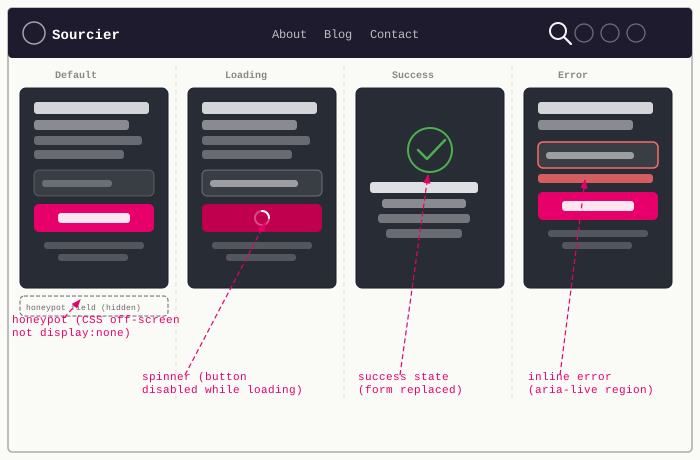
Click the expand icon to view it fullscreen.
The MailingListCTA component is a dark card that sits at content width on any
page. The submit logic lives in a shared subscribeForm.ts utility so both the
full-width card and the sidebar component use the same behaviour without
duplicating code.
Honeypot field
The honeypot is a text input that is visually hidden using CSS — positioned
off-screen, not just display: none, because some bots skip fields hidden that
way.
<p class="mailing-cta__honeypot" aria-hidden="true"> <label for="mailing-cta-website">Leave this blank</label> <input id="mailing-cta-website" name="website" type="text" tabindex="-1" autocomplete="off" /></p>.mailing-cta__honeypot { position: absolute; left: -9999px; width: 1px; height: 1px; overflow: hidden; opacity: 0; pointer-events: none;}tabindex="-1" ensures keyboard users and screen readers can’t reach it.
aria-hidden="true" on the wrapper removes it from the accessibility tree
entirely.
Shared form utility
The submit handler lives in src/utils/subscribeForm.ts. Both MailingListCTA
and MailingListCTASidebar call bindSubscribeForm() with a config object that
maps DOM IDs to CSS class names and copy:
interface SubscribeFormConfig { formId: string; emailId: string; feedbackClass: string; feedbackSuccessClass: string; feedbackErrorClass: string; successLabel: string; defaultButtonLabel: string; source?: string;}
export function bindSubscribeForm(config: SubscribeFormConfig): void { const form = document.getElementById(config.formId) as HTMLFormElement | null; const feedback = form?.querySelector<HTMLElement>("[aria-live]") ?? null; const input = document.getElementById(config.emailId) as HTMLInputElement | null;
if (!form || !feedback || !input) return;
form.addEventListener("submit", async (e) => { e.preventDefault();
const email = input.value.trim(); if (!email) return;
const btn = form.querySelector<HTMLButtonElement>("button[type=submit]"); if (!btn) return;
btn.disabled = true; btn.textContent = "Subscribing…"; feedback.hidden = true; feedback.className = config.feedbackClass;
try { const res = await fetch("/.netlify/functions/subscribe", { method: "POST", headers: { "Content-Type": "application/json" }, body: JSON.stringify({ email, website: (form.elements.namedItem("website") as HTMLInputElement | null)?.value ?? "", ...(config.source ? { source: config.source } : {}), }), });
const data = await res.json();
if (res.ok) { feedback.textContent = config.successLabel; feedback.classList.add(config.feedbackSuccessClass); form.reset(); btn.textContent = "You're in"; btn.disabled = true; } else { feedback.textContent = (data as { error?: string }).error ?? "Something went wrong. Please try again."; feedback.classList.add(config.feedbackErrorClass); btn.disabled = false; btn.textContent = config.defaultButtonLabel; } } catch { feedback.textContent = "Something went wrong. Please try again."; feedback.classList.add(config.feedbackErrorClass); btn.disabled = false; btn.textContent = config.defaultButtonLabel; } finally { feedback.hidden = false; } });}A few things worth noting:
feedback.classNameis reset on each submission so a previous success or error class doesn’t carry over if the user submits again.btn.textContent = "You're in"on success locks the button with a confirmation label so the user knows the action was recorded.sourceis an optional field passed through to the function body, giving a hook for tracking which page the subscriber came from.- The feedback element has
aria-live="polite"so screen readers announce the outcome. It startshiddenso it takes up no space until there’s something to show.
Environment variables
Add these in the Netlify dashboard under Site configuration → Environment variables:
| Variable | Value |
|---|---|
RESEND_API_KEY | Your Resend API key |
RESEND_SEGMENT_ID | The segment ID from the Resend dashboard |
NOTIFY_FROM_EMAIL | Verified sender address, e.g. hello@sourcier.uk |
SITE_URL | Your public site URL, e.g. https://sourcier.uk |
RESEND_WELCOME_TEMPLATE_ID | Template ID printed by scripts/create-welcome-template.js |
RESEND_TOPIC_ID | Optional — scopes broadcasts to a specific topic |
RESEND_API_KEY is likely already set if you’re using Resend for other
notifications on the same site. RESEND_WELCOME_TEMPLATE_ID and RESEND_TOPIC_ID
are optional — the function falls back to inline HTML if the template ID is absent.
Adding the component to pages
Import and drop the component wherever you want the CTA to appear:
---import MailingListCTA from "../components/MailingListCTA.astro";---
<!-- rest of page --><MailingListCTA />I added it to blog posts, guide pages, tag pages, and the standalone pages — home, blog index, about, and contact.
Sidebar variant
Blog post pages have a sticky sidebar that shows the table of contents. A
full-width card below the article felt like too much repetition, so I also built
a compact MailingListCTASidebar component that sits below the ToC and shares
the same Netlify Function.
The sidebar variant is a self-contained dark card with the same form logic,
but uses display: block; width: 100% for the input and button rather than a
side-by-side layout.
---import MailingListCTASidebar from "../components/MailingListCTASidebar.astro";---
<aside class="post__sidebar"> <nav class="toc"><!-- ... --></nav> <MailingListCTASidebar /></aside>Dark mode theming
The card background is hardcoded to #0f0f0f rather than
var(--color-ink). This is intentional — --color-ink flips to #f0f0f0 in
dark mode (it’s the text colour token), so using it for a background produces a
near-white card. The footer on this site has the same issue and uses the same
fix.
To make the card visible in dark mode where the page background is #111111, I
added a pink top border and a subtle edge border:
.mailing-cta__card { background-color: #0f0f0f; border-radius: 8px; padding: 2.5rem; border-top: 3px solid var(--color-pink); border-left: 1px solid rgba(255, 255, 255, 0.06); border-right: 1px solid rgba(255, 255, 255, 0.06); border-bottom: 1px solid rgba(255, 255, 255, 0.06);}The pink top border serves as the primary visual anchor in both modes. In light mode the contrast between in the dark card and white page does the work; in dark mode the subtle borders define the card edges.
What Resend handles for you
Once a contact is in your audience, Resend takes care of the rest:
- Duplicate contacts — adding the same email again updates the existing record rather than creating a duplicate.
- Unsubscribe management — you can send broadcasts with unsubscribe links
built in, and Resend updates the contact’s
unsubscribedflag automatically. - Broadcasts — send to the full audience from the Resend dashboard or via the
POST /broadcastsAPI.
The free tier covers 3,000 emails per month and 100 contacts in audiences, which is plenty for a personal blog getting started.
Wrap-up
The full implementation is around 200 lines across three files: subscribe.ts,
subscribeForm.ts, and the two Astro components. Resend handles deduplication,
unsubscribe management, and broadcast delivery, keeping the site code lean.
If you’re already using Resend for comment notifications, the only new piece is
subscribe.ts. The welcome email script is a one-off setup, and the components
drop in wherever a CTA makes sense.
Working on something similar?
Need help raising the bar?
I help teams improve engineering practice through hands-on delivery, pragmatic reviews, and mentoring. If you want a second pair of eyes or practical support, let's talk.
- Engineering practice review
- Hands-on delivery
- Team mentoring
If this has been useful, you can back the writing with a one-off tip through a secure Stripe checkout.
Free · Practical · One email per post
Get practical engineering notes
One short email when a new article goes live. Useful if you are breaking into tech, growing as an engineer, or improving engineering practice on your team.
Comments
Loading comments…
Leave a comment