

Adding a sticky table of contents to an Astro blog
Build-time heading extraction, sticky sidebar, and an IntersectionObserver active state
- Published
- 11 June 2026
- Read time
- 6 min read
Was this useful?
Long blog posts need wayfinding. A sticky table of contents that tracks where you are as you scroll is one of the most useful navigational additions you can make to a reading experience. This post covers how I built one for this site in a way that generates the heading list at build time rather than in client-side JavaScript. The build-time approach means no DOM inspection, no flash of missing content, and no layout shift.
How Astro provides headings
When you render a markdown content entry with render() from astro:content,
it returns both the Content component and a headings array. Each item has
the shape:
{ depth: number; // 1–6, matching the h1–h6 level slug: string; // URL-safe id matching the id Astro sets on the element text: string; // Plain text content of the heading}Crucially, the slug values in this array match the id attributes Astro’s
Markdown renderer writes onto the heading elements in the output HTML. That
means you can generate anchor links at build time without any DOM inspection.
Passing headings to the layout
In the dynamic blog route, destructure headings from render() and forward
it to the layout:
const { post } = Astro.props;const { Content, headings } = await render(post);<MarkdownPostLayout frontmatter={post.data} postId={post.id} headings={headings}> <Content /></MarkdownPostLayout>Filtering and rendering the ToC at build time
In the layout’s frontmatter, filter to h2 and h3 — deep nesting beyond
that makes the sidebar more confusing than helpful. Only render the sidebar at
all if there are at least two items:
---const { frontmatter, postId, headings = [] } = Astro.props;const tocHeadings = (headings as { depth: number; slug: string; text: string }[]) .filter((h) => h.depth === 2 || h.depth === 3);---The sidebar markup is static HTML emitted at build time:
{tocHeadings.length > 1 && ( <aside class="post__sidebar" aria-label="Table of contents"> <nav class="toc"> <p class="toc__heading">On this page</p> <ol class="toc__list"> {tocHeadings.map((h) => ( <li class={`toc__item toc__item--h${h.depth}`}> <a class="toc__link" href={`#${h.slug}`}>{h.text}</a> </li> ))} </ol> </nav> </aside>)}No document.createElement, no innerHTML, no flash of missing content. <ol>
is used rather than <ul> because the heading sequence in a document is ordered
from top to bottom, not an unordered collection.
Layout structure
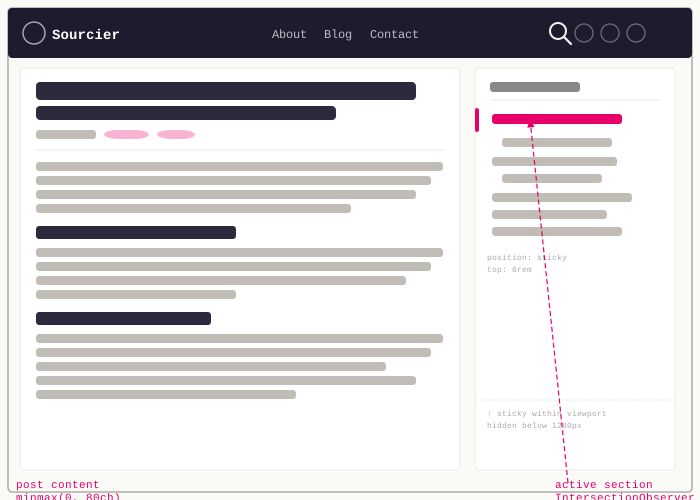
The sidebar sits alongside the post content in a CSS grid. The two-column
layout only activates at wide viewports — below 1280px the sidebar is
hidden and the post reads as a single column as usual:
.post__layout { margin: 0 auto;
@media (min-width: 1280px) { display: grid; grid-template-columns: minmax(0, 68ch) 260px; gap: 4rem; align-items: start; justify-content: center; }}
.post__layout__content { min-width: 0;}
.post__sidebar { display: none;
@media (min-width: 1280px) { display: block; align-self: start; position: sticky; top: 6rem; max-height: calc(100vh - 8rem); overflow-y: auto; }}minmax(0, 68ch) prevents the content column from overflowing its grid cell
on narrow-ish wide viewports. align-self: start is required for position: sticky to work on a grid item — without it the item stretches to the full
column height and sticky has nothing to scroll within.
Sticky sidebar
position: sticky; top: 6rem on .post__sidebar keeps the ToC in view as
the reader scrolls. max-height: calc(100vh - 8rem) with overflow-y: auto
ensures very long tables of contents don’t overflow the viewport.
Active section highlighting with IntersectionObserver
The ToC links are plain anchor links in the static HTML. Highlighting the
currently-visible section requires a small amount of client-side JavaScript.
IntersectionObserver is the right tool — it fires without scroll event
listeners and has good performance characteristics:
const tocLinks = document.querySelectorAll<HTMLAnchorElement>('.toc__link');if (tocLinks.length) { const setActive = (id: string) => { tocLinks.forEach((l) => l.classList.toggle('is-active', l.getAttribute('href') === `#${id}`) ); };
const headingEls = document.querySelectorAll<HTMLElement>( '.post__content h2, .post__content h3' ); const obs = new IntersectionObserver( (entries) => { for (const entry of entries) { if (entry.isIntersecting) { setActive(entry.target.id); break; } } }, { rootMargin: '0px 0px -80% 0px' } ); headingEls.forEach((h) => obs.observe(h));}rootMargin: '0px 0px -80% 0px' shrinks the observable area to the top 20%
of the viewport. A heading becomes “active” as soon as it enters that band,
which means the active link reflects the section the reader just reached rather
than a section far below the current scroll position.
Adding the script
The IntersectionObserver code lives in MarkdownPostLayout.astro inside a
plain <script> tag with no attributes:
<script> // ... ToC observer and other layout scripts</script>Astro treats an unattributed <script> tag as a bundled module script. It
processes it through the build pipeline, deduplicates it across all pages that
use the layout, and defers it automatically. TypeScript is supported without
any extra configuration. No is:inline or type="module" attribute is needed.
Styles
h2 and h3 items are visually distinguished by indentation and font size. The
toc__heading element uses the site’s pink accent as both its text colour and
a top border, tying it visually to the active link indicator. The active state
uses the pink accent on text, a left border, and a faint pink background tint —
consistent with other interactive indicators on the site:
.toc__heading { font-family: 'Barlow Condensed', sans-serif; font-size: 0.75rem; font-weight: 700; text-transform: uppercase; letter-spacing: 0.1em; color: var(--color-pink); padding-top: 0.75rem; border-top: 2px solid var(--color-pink); margin-bottom: 0.75rem;}
.toc__link { display: block; font-size: 0.9375rem; line-height: 1.4; color: var(--color-muted); text-decoration: none; padding: 0.45rem 0.5rem 0.45rem 0.75rem; border-left: 2px solid transparent; border-radius: 0 3px 3px 0; transition: color 0.15s ease, border-color 0.15s ease, background-color 0.15s ease;
&:hover { color: var(--color-ink); background-color: var(--color-surface); }
&.is-active { color: var(--color-pink); border-left-color: var(--color-pink); background-color: rgba(232, 0, 106, 0.06); }}
.toc__item--h3 .toc__link { padding-left: 1.5rem; font-size: 0.875rem;}The result
Posts with two or more h2/h3 headings get a sticky sidebar that renders as
static HTML, requires no JavaScript to display, and uses a small
IntersectionObserver to keep the active link accurate as the reader scrolls.
Posts with fewer headings render without a sidebar, using the full column width.
Working on something similar?
Need help raising the bar?
I help teams improve engineering practice through hands-on delivery, pragmatic reviews, and mentoring. If you want a second pair of eyes or practical support, let's talk.
- Engineering practice review
- Hands-on delivery
- Team mentoring
If this has been useful, you can back the writing with a one-off tip through a secure Stripe checkout.
Free · Practical · One email per post
Get practical engineering notes
One short email when a new article goes live. Useful if you are breaking into tech, growing as an engineer, or improving engineering practice on your team.
Comments
Loading comments…
Leave a comment